
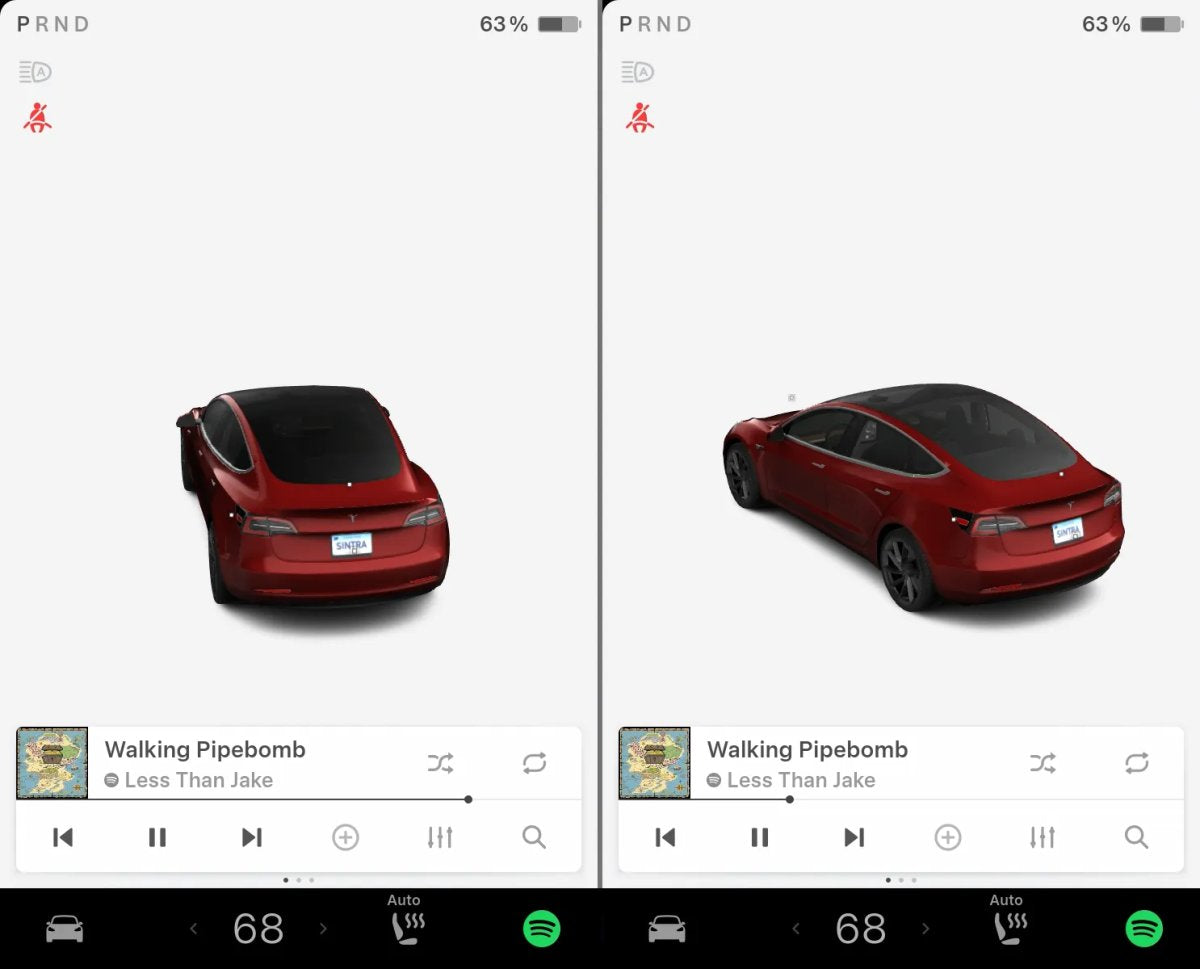
Tesla owners often look for ways to make the in-car experience feel as refined as the vehicle itself. The Spring 2026 Software Update introduced Unreal Engine-based parked visualizations on newer vehicles, which can make Intel-powered cars feel left out. If you have an Intel-based Tesla, you may notice the on-screen vehicle avatar appears different — and a bit "darker" — than on AMD-powered cars.


Tesla strives to maintain feature parity across hardware generations, but some differences are designed to conserve processing power. A clear example is the transparency of the glass roof and windows in the visualization. On AMD vehicles the glass is more transparent, making the interior easy to see. On Intel vehicles, it’s much darker and can look nearly opaque. Thanks to the Paint Shop feature that arrived in the 2025 Holiday Update, you can narrow this gap yourself.


Understanding the Intel vs. AMD Divide
The Spring 2026 Software Update introduced high-fidelity parked vehicle visualizations with advanced lighting and realistic reflections. These specific Unreal Engine-based upgrades are limited to AMD-based vehicles because they require additional computing power.
While Intel-based Teslas are still getting many of the new features, they don't get the full-screen interactive visualization. Instead, Intel users see a more basic version in which the vehicle’s glass is rendered almost pitch-black. By manually adjusting the "virtual" window tint, you can reduce this darkness and make your car’s avatar look closer to the AMD visualizations.
How to Use the Paint Shop to Fix Your Tint
The Paint Shop app is a substantial step up from the older "Colorizer" tool and is fully supported on Intel-based Tesla vehicles. It enables custom vehicle wraps, license plates, and tint adjustment. You can also create and apply your own custom wraps to personalize your car’s digital twin.

Here’s how to adjust your Intel Tesla’s avatar so the interior is visible:
- Open Toybox: Tap the App Drawer icon on the touchscreen and open the Toybox app.
- Launch Paint Shop: Select Paint Shop within Toybox.
- Navigate to the Tint tab: You will see options for Color, Wrap, and Tint.
- Adjust Tint Darkness: Use the slider to reduce tint darkness to 0% or a very low level. As you move it toward transparent, the interior becomes visible in the visualization.
- Save Your Settings: The changes apply to your car’s avatar and also sync with the visualization in the Tesla mobile app.
Why This Simple Change Matters
Although it’s a small tweak, being able to see the interior on screen improves realism. The default dark, opaque windows in the Intel visualization can make the car look less lifelike.
Whether you want to match your real window tint or approximate the reflections from the Spring 2026 update, this is the easiest way to enhance the visualization on an Intel-powered Model 3 or Model Y. Tesla continues to offer customization tools across hardware generations, and the company may add more personality to the "virtual car" experience, potentially including more interior customization in future updates.


Teilen:
Tesla Sales Up in Europe With Several Countries Doubling Sales
Tesla to Add Smart Charging to Wall Connectors