
![How to "Hack" Tesla Rear Screen to Watch Any Video Streaming Apps/Services [VIDEO]](http://teslahubs.com/cdn/shop/articles/rear-screen-video-2.jpg?v=1768604531&width=1200)

Tesla Theater permite la reproducción de películas y programas dentro del vehículo. Mientras que la pantalla frontal solo permite video cuando el coche está estacionado, la pantalla trasera permite a los pasajeros ver contenido mientras el vehículo está en movimiento.
Tesla limita las opciones de streaming disponibles a un pequeño conjunto de aplicaciones, excluyendo muchos servicios populares como HBO Max, Amazon Prime Video y otros.
Con un sencillo truco, es posible acceder a prácticamente cualquier servicio de streaming en la pantalla trasera.
Cómo funcionan las aplicaciones de Theater
Las aplicaciones disponibles en Tesla Theater (por ejemplo, Netflix, YouTube, Disney+ y Hulu) no son aplicaciones nativas completas. Cada una carga esencialmente un sitio de streaming dentro de una ventana de navegador sin bordes.
Debido a que esas ventanas son solo instancias de navegador sin barra de direcciones, cualquier servicio de streaming que admita la reproducción en un navegador web estándar puede ejecutarse dentro de Tesla Theater si puedes acceder a él.
Por qué difieren la pantalla frontal y la trasera
El navegador web integrado en la pantalla frontal puede cargar cualquier sitio web directamente, por lo que utilizar la pantalla frontal para acceder a servicios no compatibles es sencillo. La pantalla trasera, sin embargo, no muestra una interfaz de navegador, lo que significa que se requiere un enfoque diferente para acceder a otros sitios de streaming allí.
Cómo usar la pantalla trasera para ver cualquier servicio de streaming
Debido a que cada opción de video de Tesla es efectivamente una ventana de navegador sin controles visibles, puedes pasar de una de las aplicaciones proporcionadas a una búsqueda web genérica y luego navegar a otro sitio de streaming. El método a continuación utiliza YouTube para llegar a la Búsqueda de Google, desde donde puedes cargar otros servicios.

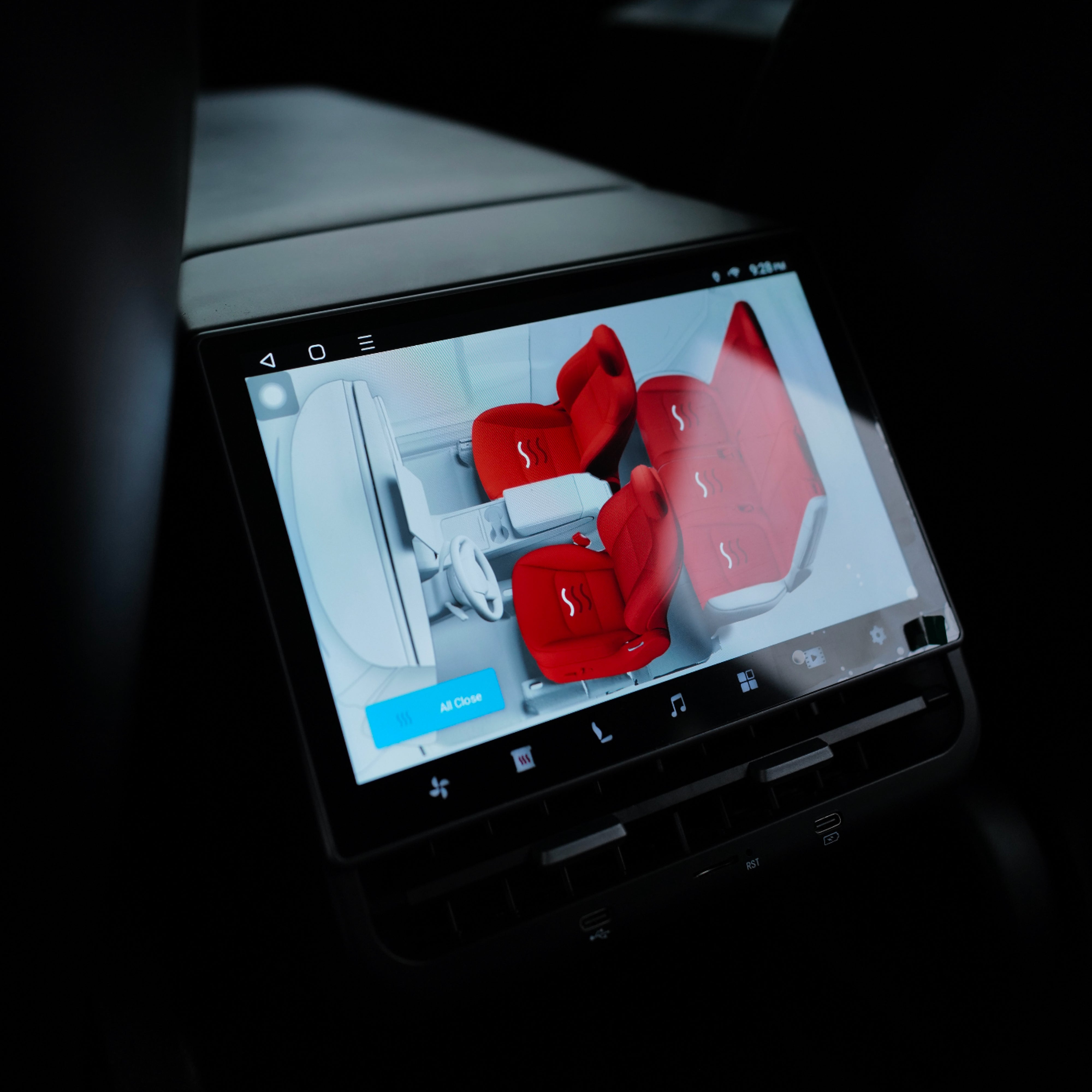
Los siguientes pasos se pueden realizar directamente en la pantalla trasera o utilizando la aplicación Rear Screen en la pantalla frontal para controlar la pantalla trasera.
Toca el icono de Entretenimiento en la parte inferior de la pantalla para abrir Tesla Theater.
Selecciona YouTube de la lista de opciones de streaming.
Cuando YouTube se cargue, toca el icono de la brújula en la parte superior izquierda para abrir el menú principal, luego selecciona "Política de privacidad" en la esquina inferior izquierda de ese menú.
En la página de Política de privacidad, desplázate hasta la parte inferior y toca el enlace "Google" en el pie de página.
Después de que se abra la Búsqueda de Google, busca el servicio de streaming que desees (por ejemplo, HBO Max o Amazon Prime Video). Desde allí, puedes iniciar sesión, navegar por el contenido y comenzar la reproducción tal como lo harías en cualquier navegador.
Esto funciona porque la pantalla trasera sigue renderizando páginas web aunque Tesla oculte la interfaz típica del navegador.
Más allá del video
Además de permitir servicios de streaming no compatibles, este enfoque permite a los pasajeros navegar por otros sitios web en la pantalla trasera.

Uso repetido e inicios de sesión guardados
Deberás repetir la secuencia (empezando desde YouTube y navegando a la Búsqueda de Google) cada vez que quieras abrir un servicio de streaming no compatible en la pantalla trasera. Sin embargo, el navegador de Tesla guarda la información de inicio de sesión, por lo que una vez que hayas iniciado sesión en un servicio, normalmente no necesitarás hacerlo de nuevo. Ten en cuenta que los datos del navegador se guardan por perfil de conductor, por lo que cada perfil deberá iniciar sesión una vez.






Compartir:
La refinería de litio de Tesla entra en producción: elimina subproductos peligrosos y reduce costos
La refinería de litio de Tesla entra en producción: elimina subproductos peligrosos y reduce costos