Guía de productos y configuración de TeslaHubs
Nuevo Tesla, teléfono conocido, sin botón de CarPlay: aquí tienes tus opciones.
Utiliza la pantalla que ya tienes, añade una pantalla independiente o sigue usando tu teléfono. Esta guía explica las diferencias, comenzando por el adaptador USB que lleva CarPlay y Android Auto compatibles a la pantalla original de tu Tesla.

La opción práctica
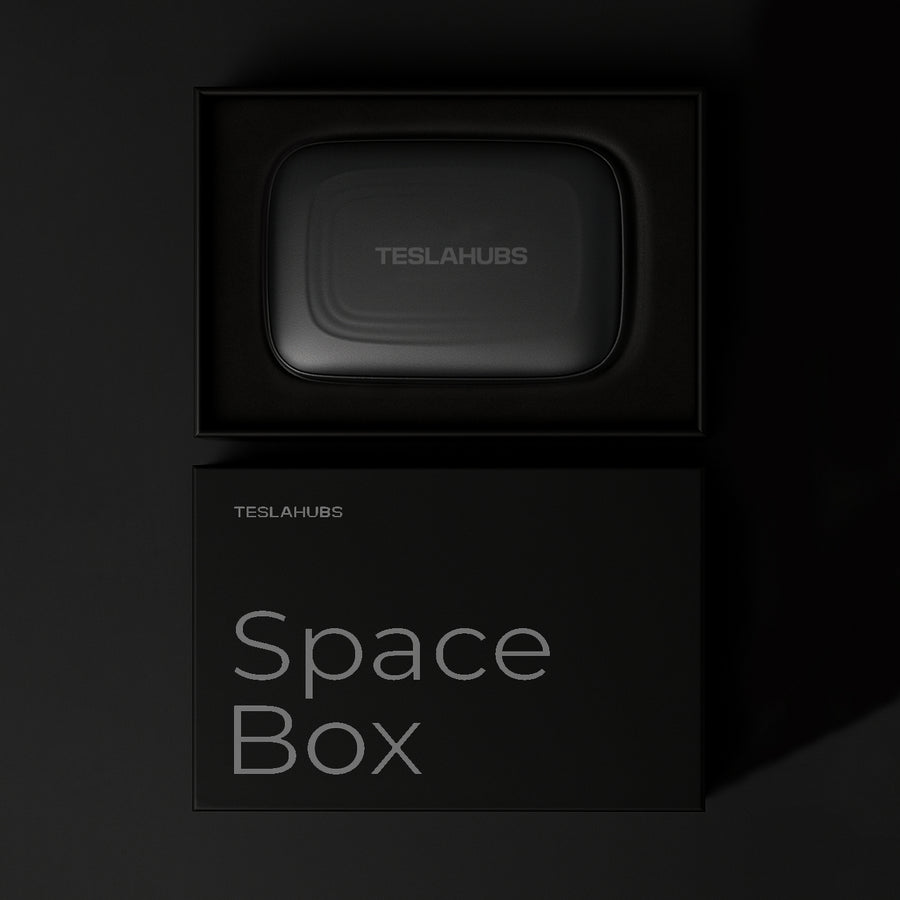
Si te preocupa la garantía, empieza por lo que cambia físicamente: el adaptador SpaceBox se conecta a través de USB. No hay que taladrar el salpicadero ni realizar empalmes en el cableado de fábrica. El dispositivo es extraíble; la cobertura de la garantía del vehículo Tesla sigue siendo una cuestión independiente para tu asesor de servicio.
¿Te preocupa la dificultad de instalación? Los pasos consisten en la conexión del hardware, el emparejamiento del teléfono y la apertura del navegador/interfaz de Tesla, tal como se muestra en la guía. La reseñadora emma escribió: Entregado en 4 días sin problemas, conectado en 1 minuto
. Su experiencia hace que el atractivo sea tangible; tómate tu tiempo para tu propia configuración y prueba con el vehículo aparcado.
Comprueba los requisitos actuales del vehículo y los accesorios
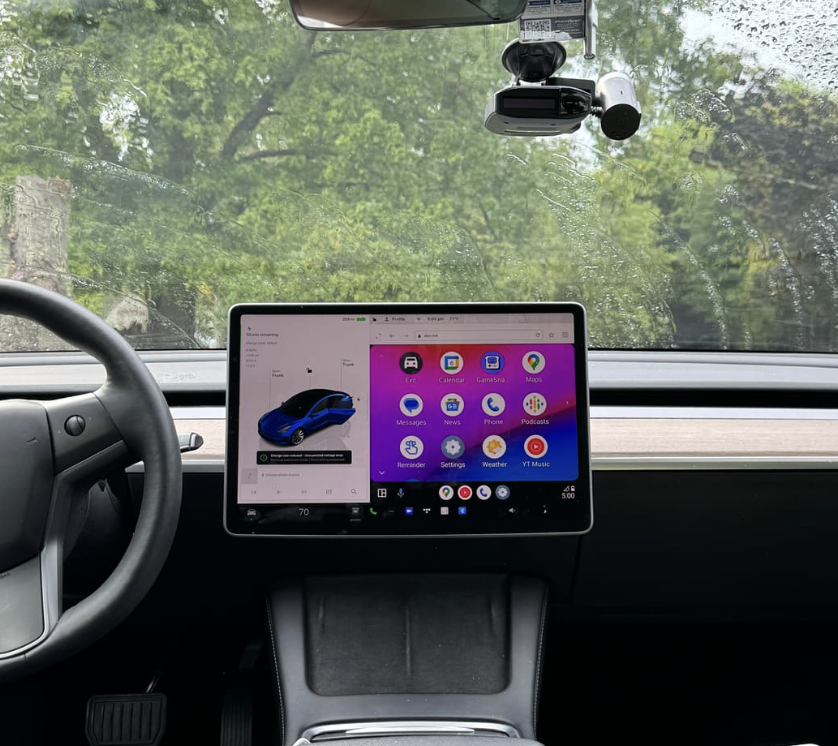
SpaceBox es el puente inalámbrico entre tu teléfono compatible y la pantalla. La caja USB permanece en el coche mientras los mapas, la música y los controles de llamada compatibles aparecen en la pantalla existente. El comentario de Mark, ¡Ahora mi coche parece completo!
, refleja el resultado: la interfaz telefónica que querías, en el habitáculo que elegiste. Confirma que tienes el procesador AMD Ryzen y tu versión exacta antes de realizar el pedido; Australia queda excluida.
Si la oferta de 139,99 $ parecía demasiado buena para ser verdad, hay más que inspeccionar que un simple descuento: el adaptador, los cables incluidos, la guía de instalación y la garantía del producto de 2 años, además de envío gratuito. David Mercer escribió: Este es mi segundo pedido, esta vez para mi esposa.
Es un cliente que vuelve a elegir. Lee los términos actuales y contacta con TeslaHubs ante cualquier duda sobre la instalación antes de comprar.
Separa la información de fábrica de futuras noticias
Evalúa las funciones de fábrica confirmadas utilizando la información oficial para tu vehículo.
Un rumor o una captura de pantalla no establecen una fecha de lanzamiento, hardware compatible ni la interfaz definitiva.
Puedes evaluar un accesorio por lo que admite hoy sin necesidad de predecir el software futuro de Tesla.
Preguntas para probar en tu propia configuración
Utilízalas como preguntas para verificar durante la configuración, no como una tasa de fallos medida en todos los dispositivos.
Respuesta de la interfaz
La respuesta de la interfaz puede depender del dispositivo, el teléfono y el software. Prueba las funciones que realmente utilizas mientras estás aparcado.
Reconexión
Sigue las instrucciones actuales de emparejamiento y reconexión para el producto exacto.
Requisitos de datos del teléfono
Algunos adaptadores utilizan el punto de acceso del teléfono. La versión actual del Carlinkit T2C para punto de acceso móvil no necesita tarjeta SIM; comprueba los requisitos de datos de tu teléfono.
Información de aplicaciones y vehículos
Comprueba cómo se comporta la aplicación de navegación elegida en tu configuración compatible. No asumas que todas las funciones proyectadas utilizan los mismos datos del vehículo que la interfaz nativa.
Roles de conexión
El adaptador y la conexión nativa del vehículo tienen roles diferentes. Sigue la guía actual si necesitas alternar entre ellos o solucionar problemas de conectividad.
Mantenimiento por cuenta propia (DIY)
Un proyecto DIY requiere su propio hardware, software y pruebas. Utiliza la documentación actual del proyecto en lugar de confiar en un precio de piezas o garantía de funciones fija.
Comparativa de las cinco vías
| Vía | Coste hardware | Configuración | CarPlay | Android Auto | Medios/duplicación | Guía | Decisión |
|---|---|---|---|---|---|---|---|
| Interfaz telefónica actual | Funciones del vehículo existentes | Usa guía del vehículo | No es vía de proyección | No es vía de proyección | Comprueba funciones actuales | Guía del vehículo | Quizás ya cubra tus necesidades |
| Proyecto DIY | Lee lista de piezas actual | Construir y mantener | Depende del proyecto | Depende del proyecto | Depende del proyecto | Documentación del proyecto | Requiere configuración/pruebas propias |
| Adaptadores empaquetados | Tesery 76,99 $ / T2C 69,99 $ al comprobar | Sigue la guía exacta | Ambos anunciados | Ambos anunciados | Comprueba dispositivo exacto | Guía publicada por el vendedor | Comprueba requisitos/disponibilidad |
| SpaceBox | 139,99 $ hardware actual | USB, emparejamiento, prueba aparcado | Soportado | Soportado | Solo en modo aparcado | Guía del producto; aplican términos | Requiere AMD Ryzen/verificar versión |
| Pantalla independiente | Comprueba precio real | Lee instalación exacta | Depende del dispositivo | Depende del dispositivo | Depende del dispositivo | Guía del vendedor | Añade una posición de visión |
Desplaza la tabla lateralmente para comparar las vías.

Vía 1: Funciones Bluetooth del teléfono actual
Utiliza la guía telefónica Bluetooth actual del vehículo para las funciones que admite.
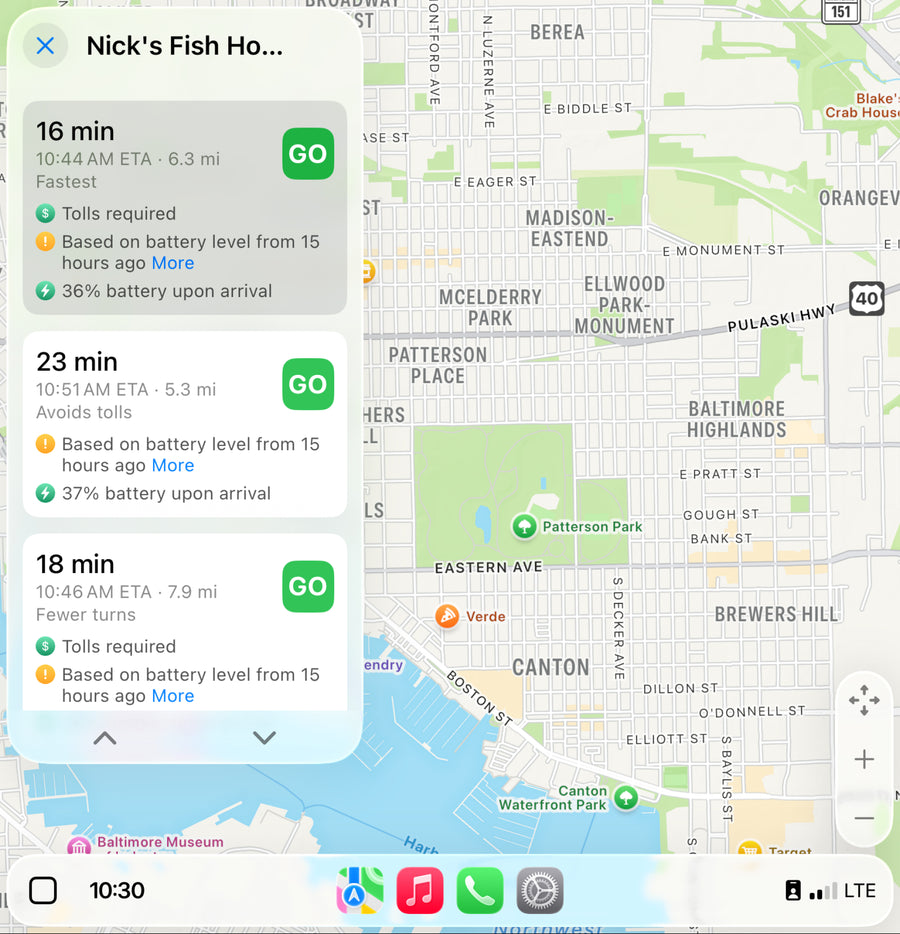
El Bluetooth por sí solo no proyecta un panel CarPlay. Puede ser suficiente si solo necesitas las funciones telefónicas que el coche ya admite.
Elige la interfaz actual si ya cubre tus necesidades.
Vía 2: Proyecto DIY
El proyecto Tesla Android es una vía DIY independiente para investigar a través de su documentación actual. No es la misma compra que un adaptador empaquetado.
Lee la lista de hardware actual, el proceso de instalación del software y las funciones admitidas antes de comprar piezas.
Elige DIY cuando quieras construir y mantener la configuración tú mismo.
Vía 3: Adaptadores empaquetados específicos
Compara dispositivos empaquetados exactos: el listado de Tesery comprobado mostraba 76,99 $ y el Carlinkit T2C 69,99 $. Ambos anuncian CarPlay y Android Auto.
Su guía de configuración incluye una conexión mediante el navegador de Tesla. Utiliza el dispositivo y la versión exactos, no una marca genérica.
Un adaptador de CarPlay cableado a inalámbrico para un coche que ya tiene CarPlay cableado es un producto diferente a una conexión específica para Tesla. Comprueba el sistema de entrada previsto.
Compara el precio, la disponibilidad actual, la guía real y los términos de garantía.
Vía 4: Adaptador de pantalla existente SpaceBox
SpaceBox es compatible con CarPlay y Android Auto en configuraciones compatibles, con conexiones telefónicas inalámbricas y cableadas, utilizando la pantalla existente.
El hardware cuesta 139,99 $. SpaceBox requiere un procesador AMD Ryzen y una comprobación exacta del modelo/versión. Australia queda excluida.