
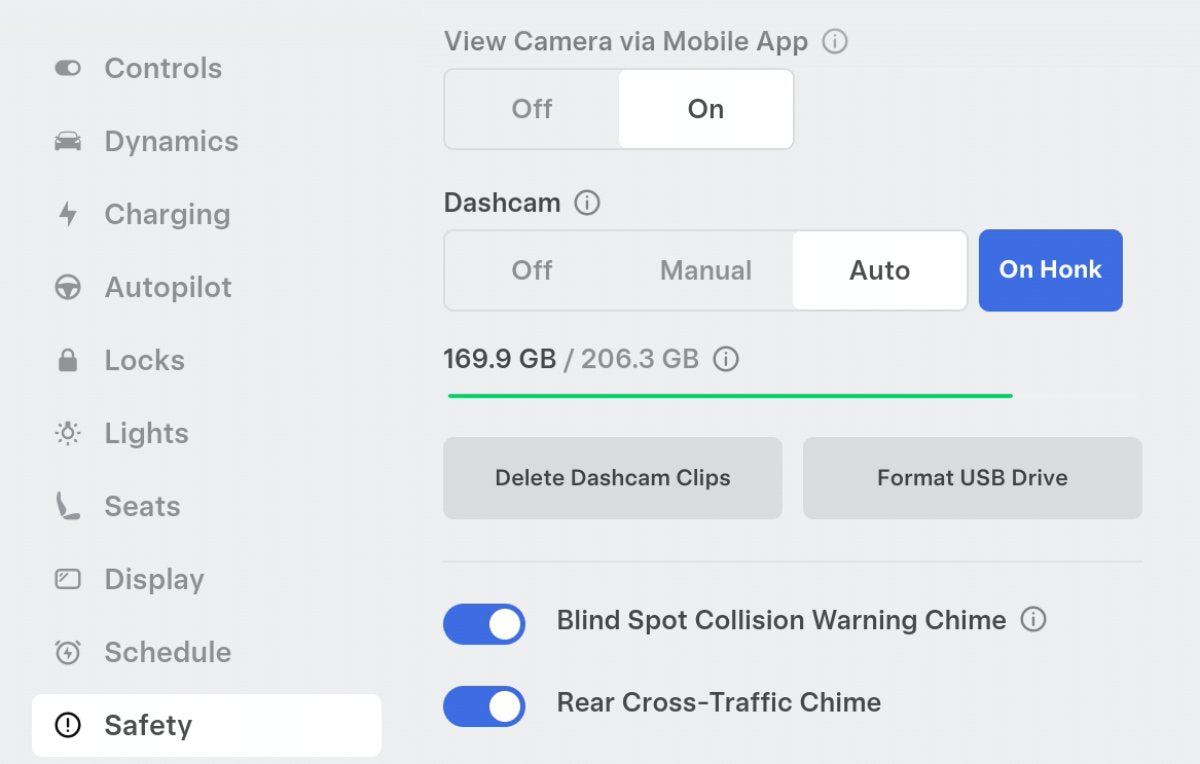
Tesla vehicles include Dashcam and Sentry Mode, which record video from multiple cameras around the car. Each clip can include up to six angles: front, rear, left, right, and—on AMD-powered vehicles—both door pillars. When these features are enabled, footage is captured in a loop that overwrites older clips unless you save them. How much history is retained depends on the size of the USB drive or SSD. According to the Tesla Owner's Manual, smaller storage devices provide about a 1 hour rolling buffer, but this can be extended to as much as 24 hours.

How to Get Up to 24 Hours of Video Recording
The expanded Dashcam footage buffer rolled out globally with the Spring 2026 feature drop in software update 2026.14 last month, raising the maximum from 1 hour to 24 hours. The longer recording history is available on Model S, Model X, Model 3, Model Y, and Cybertruck, provided the following requirements are met:
- Software update 2026.14 (or higher).
- Hardware 3 (HW3) or higher with an AMD Ryzen infotainment unit.
- A compatible USB drive or solid-state drive (SSD) with a capacity of 1 TB or more.
While a 24-hour buffer offers more time to save footage after an incident, it also presents a privacy risk. If someone steals the storage device, a full day of video could reveal your home address, workplace, commute, and other locations visited in the past 24 hours.
To address this, Tesla introduced automatic dashcam clip encryption in software update 2026.20. It’s enabled by default, and you can turn it off in Controls > Safety.
You can review recorded videos on the vehicle’s touchscreen or in the Tesla app. A telemetry overlay is available for Dashcam clips, displaying vehicle data such as speed, steering angle, and Self-Driving state in real time. On a computer, unencrypted clips work with standard media players, while encrypted clips can be viewed using Tesla’s online Dashcam Viewer at https://dashcam.tesla.com/.

Tesla USB Drives
Vehicles manufactured from 2020 onward include a pre-formatted, Tesla-branded USB flash drive installed in the glove box’s media port.

The included drive is a Samsung-manufactured 128GB unit. While 128GB is adequate for basic usage and a typical 1-hour loop, it’s too small for the new 24-hour rolling buffer.
What to Look For in a Storage Drive
- Capacity of at least 1 TB to capture a full day of footage.
- USB 3.0 (or faster) read/write performance to handle multiple simultaneous video files.
- Durability suitable for in-vehicle use. Flash-based storage (USB drives and SSDs) is more resistant to vibration than mechanical hard drives, but the device should tolerate cabin temperature swings and frequent overwrites.
- A standard USB-A connector to match the glove box media port.
USB Drive Recommendations

If you prefer a traditional flash drive, the Samsung BAR Plus USB drive is a solid option. It’s the same model used for factory-provided drives and is available in capacities up to 512 GB. It features a rugged metal body and a USB 3.1 interface with speeds up to 400 MB/s.
To achieve the full 24-hour buffer, you’ll need 1 TB or more. 1 TB USB sticks are uncommon and often pricey; at that size, an SSD is usually the better choice. A portable SSD such as the Samsung T7 offers read/write speeds up to 1,050 MB/s over USB 3.2 Gen 2 and is designed to withstand cabin temperatures and frequent overwrites.
If you don’t plan to jump to 1 TB, stepping up to a slightly larger drive like this 256GB Samsung USB drive can still be beneficial, allowing more saved clips before storage fills and recording pauses.
If you frequently remove the storage device, a USB extension cable can make access and reinstallation easier.
While the drive is unplugged, you can also manage local music files or set custom lock sounds.











Share:
Tesla Tops May Car Sales in Norway, Model Y Leads
Tesla Expands Unsupervised Robotaxi Service Across Austin