
How to Create Custom Tesla License Plate Visualizations

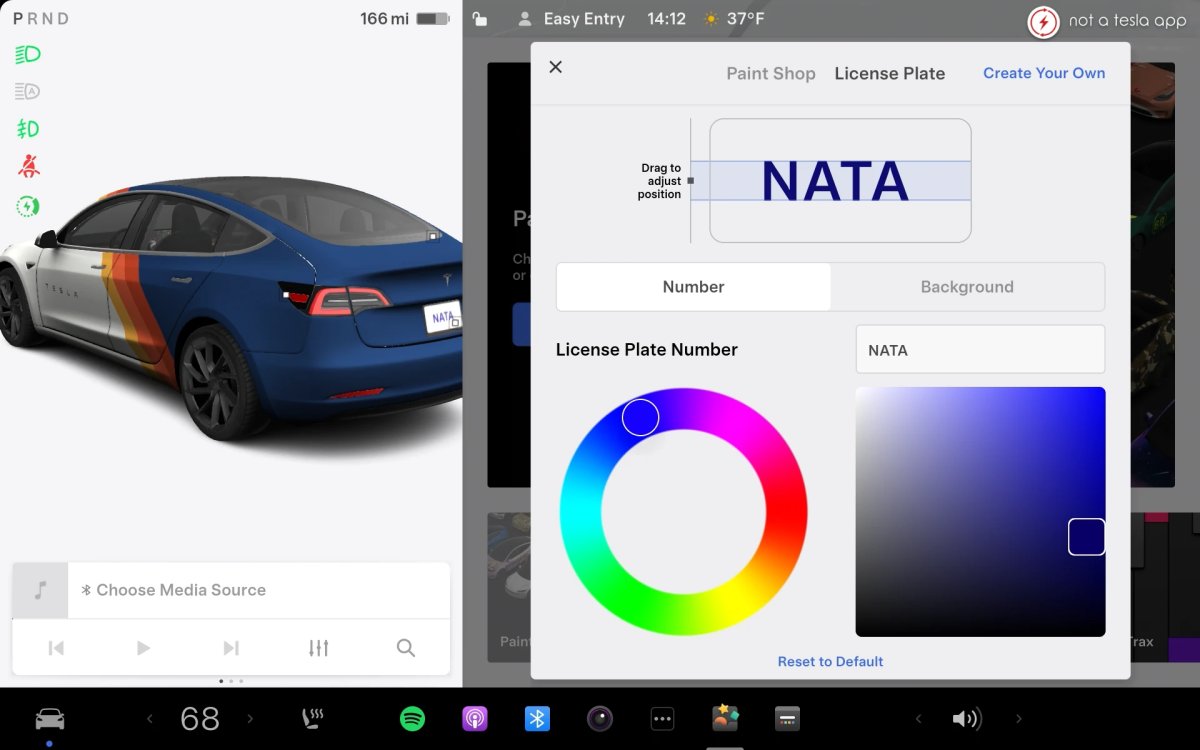
Personalizing the on-screen version of your Tesla has become more entertaining in recent years. In addition to changing the vehicle’s color or applying a custom wrap, you can also show a personalized license plate on your car’s visualizations.
If you want to mirror your actual vanity plate, add a flag, or use a novelty background, setting up a plate design is simple once you know where to access it.
What It Is
This feature lets you customize the virtual license plate that appears on your vehicle avatar on the center touchscreen, in the Tesla app, and elsewhere. Support for bespoke license plates arrived alongside custom digital wraps in the 2024 Holiday Update, and at launch it was limited to the Cybertruck.

Tesla later confirmed these options would reach additional models. Both features expanded across the fleet a year later with the 2025 Holiday Update. Owners can now fine-tune the plate background, text, and font colors so the digital car matches the real one.
Supported Models
The capability is available on all Tesla models equipped with Intel Atom or AMD Ryzen infotainment processors. Whether you drive a Model 3, Model Y, Model S, Model X, or Cybertruck, vehicles running modern software include access to the Paint Shop tool where these options are located.

How to Customize Your License Plate Visualization
Customization isn’t currently available in the Tesla app; you need to use the vehicle’s touchscreen. To change your plate inside the car:
- Open Toybox.
- Select Paint Shop and choose Customize.
- Go to the License Plate tab at the top.
- Pick either the Number or Background sub-tab.

In the Number tab, you can enter up to 32 alphanumeric characters and use a color wheel to set the text color. In the Background tab, Tesla provides several default holiday and themed backgrounds, or you can choose a solid color. You can also upload a custom image to use as the background.
How to Create a Custom License Plate Background
Designing your own background lets you match a wrap, display regional flags, or build unique graphics.
Create an image on a computer and follow these specifications:
- Regional Dimensions: 420x200 pixels for North American standard plates, or 420x100 pixels for longer European-style plates.
- Text Options: If you want special fonts or more text control than Paint Shop provides, you can place the plate number or custom text directly in the background image. If you do this, leave the plate text field empty in the car’s Paint Shop menu.
- File Requirements: Save the image as a PNG under 500 KB.
You can store up to 10 custom plate background images on the vehicle.

How to Upload Custom License Plate Images to Your Vehicle
After preparing your background as a PNG, transfer it to your car as follows:
- Unplug the USB flash drive inside the glovebox and connect it to your computer.
- Open the drive and create a folder named LicensePlate (case-sensitive, no spaces).
- Copy your PNG file(s) into the LicensePlate folder.
- Safely eject the drive, return to the car, and plug it back into the glovebox USB port.

When you open the License Plate tab in Paint Shop and choose Background, the new images appear alongside the built-in templates. Tesla recently added the ability to upload custom wraps to your vehicle directly from your phone through the Tesla app, but license plate backgrounds can’t be uploaded wirelessly yet. For now, use a USB drive to transfer images.
Where Custom Plates Show Up
Once applied, your customized plate appears on the main driving visualization on the center touchscreen, within vehicle status menus, and on the 3D car model in the Tesla mobile app.
Custom plates add a personal touch to the vehicle avatar and also make it easier to recall your real plate number when parking.





Share:
First Tesla Owner Crosses 25,000-Mile FSD Streak Milestone
First Look at Waymo's New Robotaxi UI and Gemini Integration