
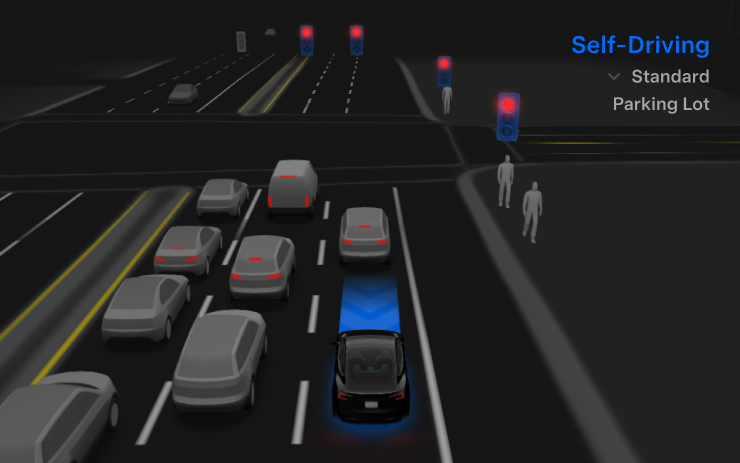
This update brings Spring Update features to vehicles on FSD v14.3 and advances Full Self-Driving to v14.3.3, adding several improvements.
FSD (Supervised) v14.3.3

Full Self-Driving (Supervised) v14.3.3 includes:
- Upgraded the Reinforcement Learning (RL) stage of training the FSD neural network, improving performance across many driving scenarios.
- Upgraded the neural network vision encoder to better understand rare and low-visibility situations, strengthen 3D geometry comprehension, and expand traffic sign understanding.
- Rewrote the AI compiler and runtime with MLIR, yielding a 20% faster reaction time and speeding up model iteration.
- Mitigated unnecessary lane biasing and minor tailgating.
- Increased decisiveness when selecting and maneuvering into parking spots.
- Improved prediction of the parking location pin, now shown on the map with a P icon.
- Enhanced response to emergency vehicles, school buses, right-of-way violators, and other rare vehicle types.
- Improved handling of small animals by focusing RL training on harder examples and adding rewards for proactive safety.
- Improved traffic light handling at complex intersections with compound lights, curved roads, and yellow light stops — trained on hard RL examples from the fleet.
- Improved handling of rare or unusual objects that extend, hang, or lean into the vehicle’s path by sourcing infrequent events from the fleet.
- Improved behavior during temporary system degradations by maintaining control and automatically recovering without driver intervention, reducing unnecessary disengagements.
- Unified the model between Actually Smart Summon, FSD, and Robotaxi for more capable and reliable behavior. (New in FSD v14.3.2, Not Available on Cybertruck)
- Help Tesla improve Self-Driving by selecting an intervention reason on the main screen after taking over. (New in FSD v14.3.2)
Upcoming Improvements
- Expand reasoning to all behaviors beyond destination handling.
- Add pothole avoidance.
- Improve driver monitoring system sensitivity with better eye gaze tracking, eye wear handling, and higher accuracy in varying lighting conditions.
Actually Smart Summon max speed is now increased to 8mph (13km/h). (Added in FSD v14.3.3, not available on Cybertruck)
You can now see distance traveled in FSD (Supervised) without an intervention. The Self-Driving App will also show your longest intervention-free streak. (Added in FSD v14.3.3)
Self-Driving App

The new Self-Driving app lets you subscribe with a single tap, learn how to activate and use the feature, and view ongoing stats.
Open it via App Launcher > Self-Driving.
Immersive Sound Upgrade

Premium Immersive Sound uses advanced sound extraction to place the listener in front of a detailed soundstage within an immersive space, and it works with all streaming sources.
Adjust it under Settings > Audio > Tone > Immersive Sound.
Full Self-Driving (Supervised)

With your supervision, Full Self-Driving (Supervised) can start from a parked position, make lane changes, pick the correct forks to follow your navigation route, navigate around other vehicles and objects, perform left and right turns, and park at your destination. You and any authorized drivers must remain attentive and exercise additional caution. This does not make the vehicle autonomous.
To use the feature, press the Start Self-Driving button or press the right scroll wheel button once. You can disable Full Self-Driving (Supervised) in Autopilot Settings.
Rear Display

Passengers in the rear seats can now view and interact with maps on the rear display while the car follows a route. Tap the maps icon on the rear screen to follow along.
"Hey Grok"

Launch Grok by saying "Hey Grok." Enable it under Grok > Settings. You can also set location-based reminders, like "remind me to pick up milk when I'm near home." Say "goodbye" to dismiss.
Pet Mode

Choose and name your pet under Controls > Display > Customize Pet Mode.
Paint Shop

Personalize your vehicle visualization with window tints, custom wraps, and license plates. Use preloaded designs or create and upload your own via USB. Open App Launcher > Toybox > Paint Shop or tap the paint or license plate button in Controls > Software.
Visual Updates

The center display now shows higher quality images of your vehicle and an enhanced park scene environment.
Trips

Trips are now part of the Energy app, where you can create and manage multiple trips to track energy usage across drives, routes, or conditions. Go to App Launcher > Energy > Trips. For quick access to the Trips Card, swipe left on the Media Card.
Blind Spot Warning While Parked

If you try to open a door while an approaching object is detected in your blind spot (e.g., a bicyclist approaching from behind), the blind spot indicator flashes, a chime sounds, and the door will not open on the first press. Wait briefly, then press again to override the warning.
Sketchpad

Sketchpad now supports stickers and emojis. You can save creations to access them in the Mobile App and share them. Requires Mobile App version 4.55.6 or later.
Blind Spot Warning Accent Lights

Interior accent lights turn red when an object is in your blind spot and your turn signal is engaged, or when an approaching object is detected while parked. Toggle under Controls > Lights > Blind Spot Warning Accent Lights.
Chime When Light Is Green

A chime will play when the traffic light you’re waiting for turns green. If you’re behind another vehicle, you’ll hear the chime when it advances, unless Traffic-Aware Cruise Control or Autosteer is active. This chime is only a notification. Enable it at Controls > Self-Driving > Green Traffic Light Chime.
Live Camera View

You can now check the interior of your vehicle while away. Enable via Controls > Safety > View Live Camera via Mobile App. Live Camera is end-to-end encrypted and can’t be accessed by Tesla. Requires Premium Connectivity and Mobile App version 4.55.6 or later.
Music App Queuing

Swipe right on tracks in Apple Music or Spotify to add them to the queue. In Apple Music, tap and hold a track to add or remove it from Favorites. In Spotify, swipe left to add or remove it from Liked Songs.
Automatic Software Updates

Your vehicle can now automatically install downloaded software updates overnight while parked and not in use, helping you stay up to date with the latest features and improvements.
Enable under Controls > Software > Automatically Install Updates.
Dashcam Viewer Updates

Recent Dashcam footage can now extend up to 24 hours. You can save any clip for permanent storage on your vehicle or to your phone via App Launcher > Dashcam Viewer. To view on your phone, go to Controls > Safety and turn on View Camera via Mobile App. Clips remain on the vehicle and are never shared with Tesla.
Clips downloaded to your phone now include details like speed, steering wheel angle, and Self-Driving state. Downloads require Premium Connectivity and Mobile App version 4.55.6 or later.
Weather Maps Improvements

Weather maps now display snow and rain with improved colors that make it easier to distinguish precipitation types. You can also view the past hour of weather data to see how conditions have changed along your route. Requires Premium Connectivity. Tap the weather icon on the map to view.
Supercharger Pricing Filter

You can choose to route only to Superchargers with Tesla pricing. When enabled, Trip Planner avoids locations where Tesla does not set charging prices or accept Free Supercharging credits. This setting requires connectivity with Online Routing enabled.
Enable it at Controls > Navigation > Trip Planner settings.
Keyboard

Your selected keyboard language now determines the dictation language. Use the international keyboard button to switch keyboard and dictation language without changing the voice command language. Tap the mic icon on the keyboard to dictate.
Security Improvements

This update includes important security fixes and improvements.
Updated Disengagement Menu
The intervention menu now includes new reasons for disengagement. Parking has been added, and ‘Other’ has returned. There are still only four possible reasons, which means ‘Preference’ and ‘Discomfort’ have been removed.
Cloud Profiles
Cloud profiles now display a cloud icon to indicate they’re stored in the cloud rather than only on the vehicle.
Amber Brake Lights
Vehicles with amber turn signals are now visualized correctly. Some regions require orange/amber turn signals; previously they were shown in red. This update displays amber turn signals for the appropriate vehicles. The Unreal Engine also improves lighting in the visualization, making brake lights more noticeable as they reflect on the ground.
Parental Controls Improvement
Tesla’s parental controls help keep new drivers safe by limiting access to certain features. Parents can reduce acceleration, limit top speed, and prevent safety features from being turned off.
For Performance vehicles, enabling Require Safety Features now also restricts Track Mode, preventing teens from changing handling, braking, and more.
Require Safety Features prevents these features from being turned off:
- Automatic Emergency Braking
- Obstacle-Aware Acceleration
- Automatic Blind Spot Camera
- Blind Spot Collision Warning Chime
- Automatic 911 Call (US only)
- Allow Mobile Access
- Park Assist Chimes
It also prevents these settings from being changed:
- Track Mode is disabled
- Lane Departure Avoidance is set to Assist
- Speed Limit Warning set to Chime
- Speed Limit set to relative
- Offset set to +5 mph (8 km/h)
- Forward Collision Warning set to Early
Increased Attention Monitoring Alert
A new camera visibility alert has been added. Tesla notes that poor camera visibility can result in increased attention monitoring.
Grok Turns Off After Inactivity
With the introduction of the "Hey Grok" wake word, the assistant now dismisses itself after about 15 seconds of inactivity to reduce accidental activations and background processing. This applies whether you used the wake word or the steering wheel button. You can still close it with natural language, such as saying "goodbye" or "talk to you later."
h/t: @Deandawiz
Grok Favorites
The integrated Grok assistant now has access to your saved favorites and can interpret your custom labels. For example, if you saved an address as "Kim’s parents," you can say, "Hey Grok, navigate to “Kim’s parents," and it will use the correct address from your favorites.
h/t: @NickScheber
Advanced Software Updates
The Software Update Preference under the Software menu has been simplified. Instead of choosing between "Standard" and "Advanced," there is now a single on/off toggle for Advanced updates.
Turning this to "On" opts you in to receive the latest releases as soon as they are available for your vehicle configuration and region, which may include more frequent updates or minor bugs. Leaving it "Off" waits for a wider release before installing updates.
Re-Order Trip Meters
You can reorder trip meters by tapping and holding one until it jiggles, then dragging it to a new position.
You can also tap the energy graph in the top-right corner to open a larger, more detailed view.
Chromium Browser Updated
The in-vehicle browser, which is based on Chromium, has been updated from version 136 to 140. This brings better compatibility with modern web standards, improved WebGPU performance, and various fixes.
Service Mode Improvements
New Service Mode Plus Authentication QR Code for Independent
Independent repairers can authenticate for Service Mode Plus by scanning a QR code shown on the vehicle and logging in with Toolbox credentials.
Models: All vehicles
Blinking DTC indicator added to the bottom banner
A Diagnostic Trouble Code (DTC) indicator has been added next to the VIN on the bottom Service Mode banner. The indicator is visible when DCs are present on the vehicle.
Models: All vehicles
Noise Recording Panel Updates (Service Mode Plus)
The Noise Recording panel now supports Active Noise Cancellation (ANC) microphone recording. When ANC mode is enabled, the panel displays ANC microphone locations and extends the recording duration to 3 minutes.
Models: Model S (2021+), Model X (2021+), Cybertruck
Vehicle Functions Panel Added to Service Mode
The Vehicle Functions panel is now available in Service Mode. It shows an overview of degraded vehicle functions and their associated set alerts. Full functionality, including detailed functions, historical view, and advanced controls, remains available only in Service Mode Plus.
Models: Model 3, Model Y
New Bluetooth Panel
A new Bluetooth panel under Infotainment supports Bluetooth system diagnosis. It shows the status of the main and rear Bluetooth modules (if equipped), including connection states, signal strength with health indicators, and connected device information.
Models: Model S (2021+), Model 3, Model X (2021+), Model Y, Cybertruck
Save Recent Dashcam Videos
It’s now easier to browse and save recent Dashcam clips. Recent, non-saved clips are listed at the top of Dashcam Viewer, and you can now save recent clips that are still on the USB drive but not yet protected from deletion.
Volume Icons
When adjusting an app’s volume (e.g., Spotify), the volume icon now shows the app’s icon. Navigation volume continues to have its own icon and independent setting. This change does not introduce app-specific volume settings; it simply clarifies which volume you’re changing.
Driver Profiles
Driver profiles are now accessible in vehicle settings, not just from the Profiles icon in the status bar. Go to Controls > Profiles to view all driver profile settings.
Grok Settings
Grok settings are now also shown under Controls > Audio. These are the same options available in the Grok app, surfaced under Controls to make them easier to find.
Euro Semi Visualization
Autopilot/FSD visualizations now include cab-over-engine style semi trucks commonly seen in Europe.
New 'All Apps' Icon
The ‘All Apps’ dock icon has been redesigned to resemble an iOS-style folder showing four apps. The contents are dynamic and can change to reflect recent or frequently used apps that aren’t in the dock.
Larger Dock Icons
Dock icons have been increased in size. While the dock area appears unchanged, the icons themselves are larger.
Animated Badges
Models with special badges, such as the Ludicrous badge on the Performance Model 3, now show an animation on the Software screen. The animation plays upon entering the Software menu and can be replayed by tapping the badge.
New Creations Section
With Photobooth now part of the app, Tesla is rebranding the Photobooth section to Creations on AMD Ryzen vehicles. Creations houses both Photobooth photos and Sketchpad drawings.
Inside Creations, tabs let you switch between Photobooth and Sketchpad. You can view and share saved creations. These assets are stored on your vehicle, not on Tesla’s servers, so opening this section wakes the vehicle to send the images.
Note: You’ll need vehicle update 2026.14 and an AMD Ryzen vehicle to see the new Creations section in the app.



Share:
Tesla Rolls Out FSD V14.3.3 (Update 2026.14.6.6) With New FSD Features and Spring Update
FSD v14.3 to merge with Spring 2026 Update features soon